
User Guide / Leads
Leads can be added manually or through our contact form integrations. That means when someone submits a supported contact form, the user information will be automatically added to the leads section of Enterprised Cloud CRM!
Manually Adding Leads
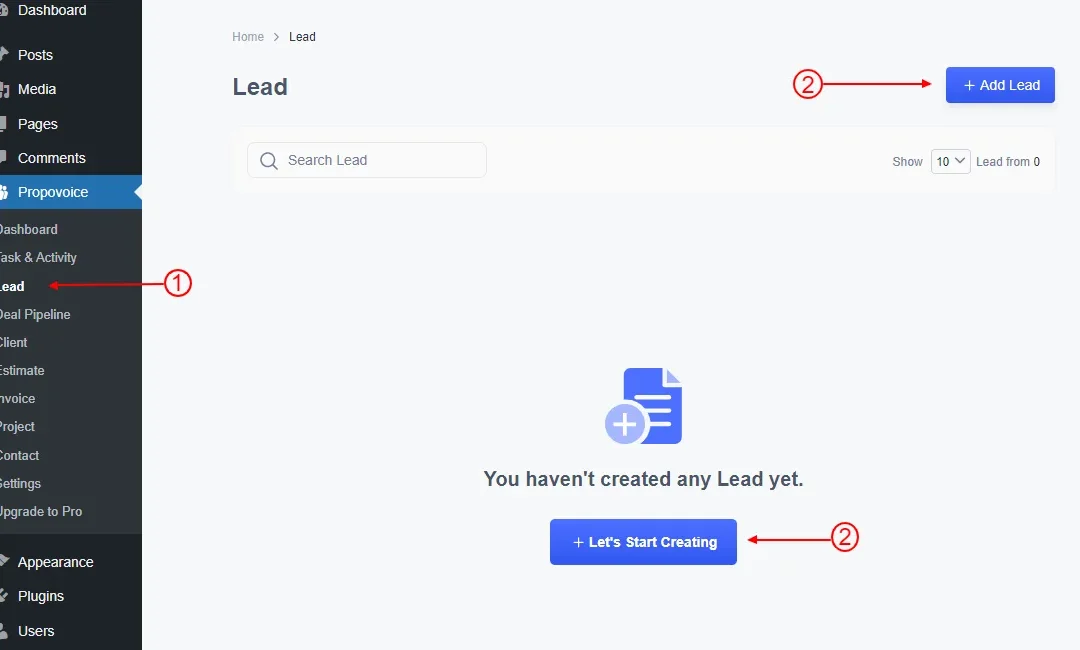
To add a Lead, go to the Admin Dashboard
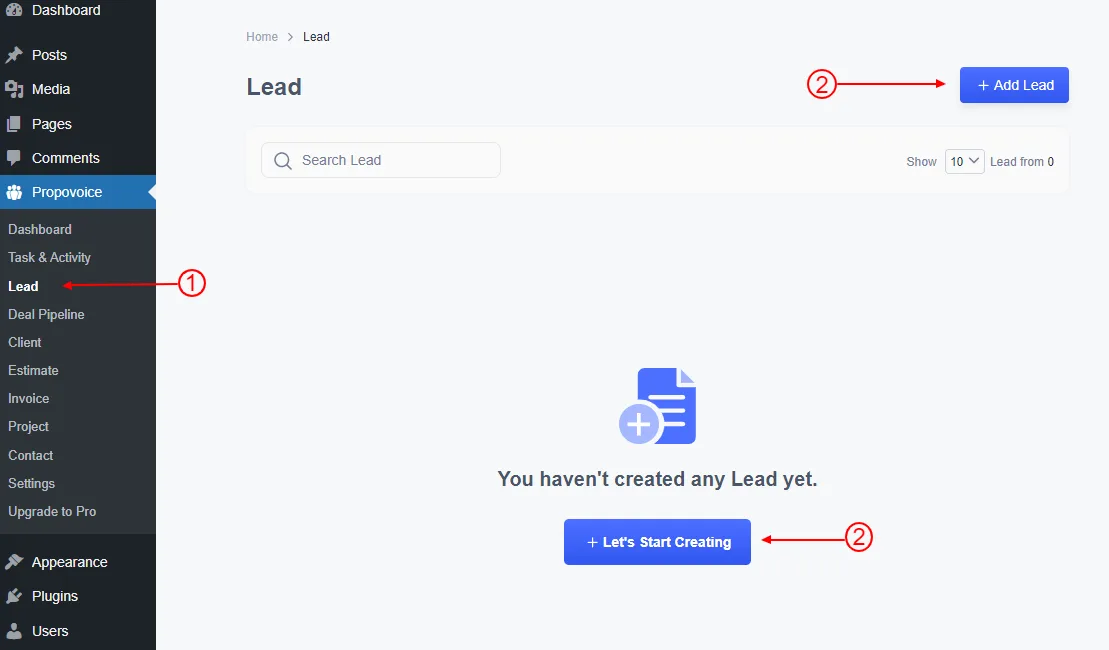
- Click on Propovoice > Lead
- Click on the Add Lead or Let’s Start Creating button.
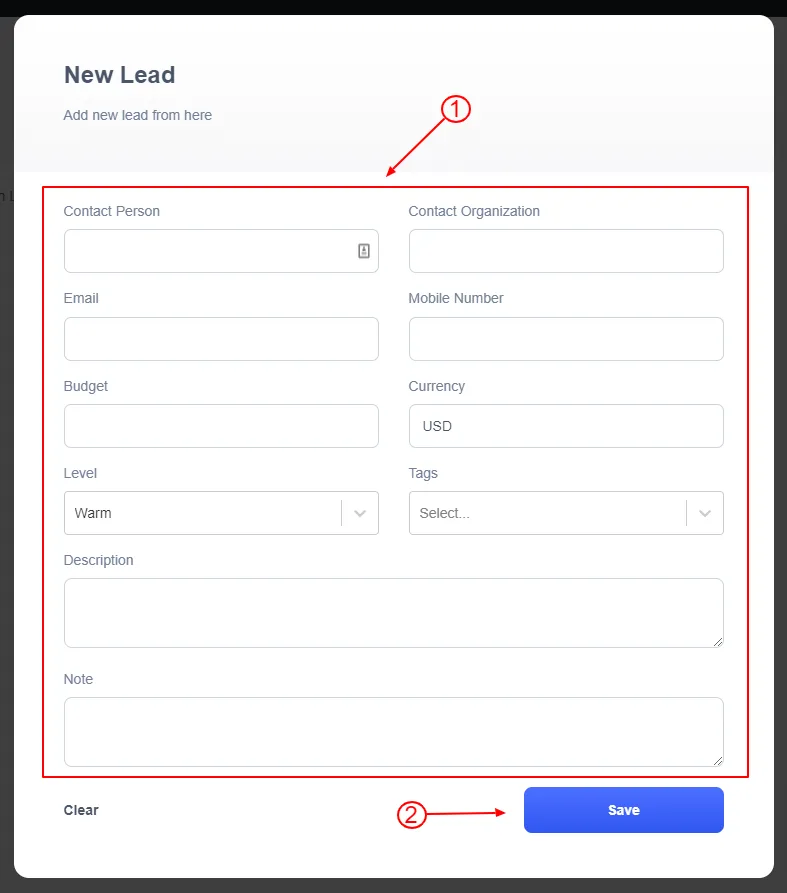
You will see a form to enter the information about the lead, like the image below.
- Fill up your lead’s necessary information
- Click on the Save button when you’re done.
Importing Leads From a CSV File
We have a simple importing system for the leads feature. You can find the importing option at the top right corner of the screen.
You will see a pop-up with a file upload option. You can drop a specifically formatted CSV file in the marked area. If using this feature for the first time, you must download the sample file to understand the required format. We have marked on the image below to understand where you can download the sample file.
If you have exported the lead data from another platform, you can use different automated services and Excel formulas on Microsoft Excel or Google Sheets to convert data into the specified format.
If your converted file is not working, please open it on a text editor and see if there are any unwanted formatting or style data on the file. You can remove them and only keep the comma-separated values as specified in the sample document. For further instructions and assistance, please feel free to contact us.