User Guide / Clients & Portal
Enterprised Cloud CRM now has the feature to allow your Clients to view their projects, estimates, invoices, and many more! In this documentation, we will walk you through the process of enabling the Client Portal feature for your clients so that you can have better business relationships and transparency.
Enabling Client Portal Feature
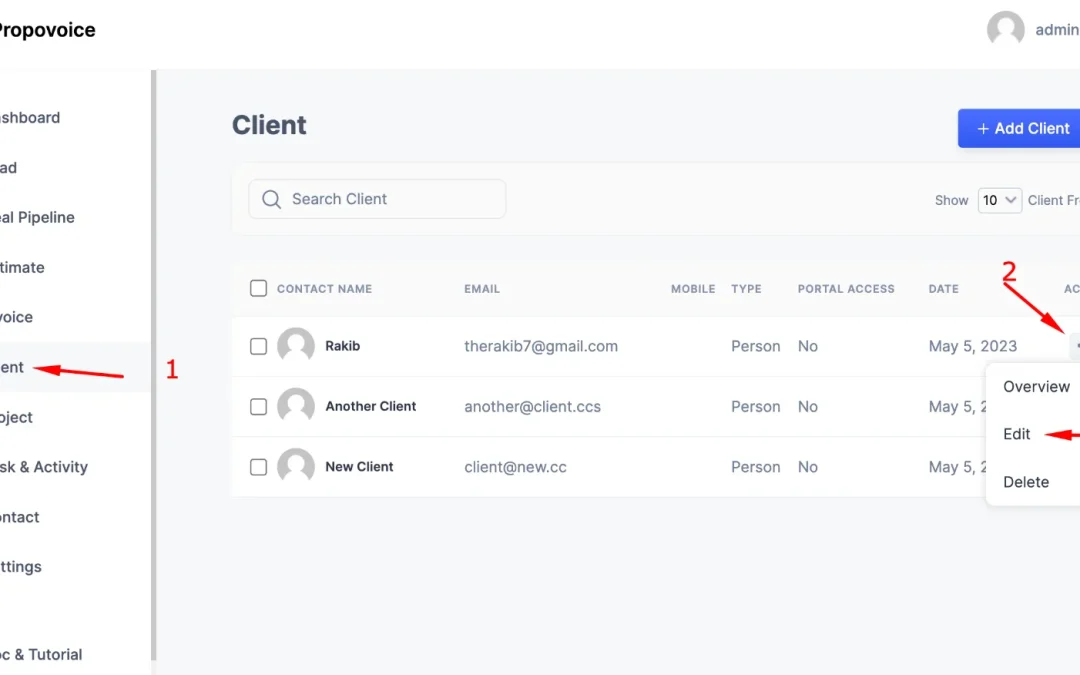
- Navigate to Enterprised Cloud Dashboard
- From the menu, click on Clients.
- Now, click on the Action options.
- From the Actions, click Edit.
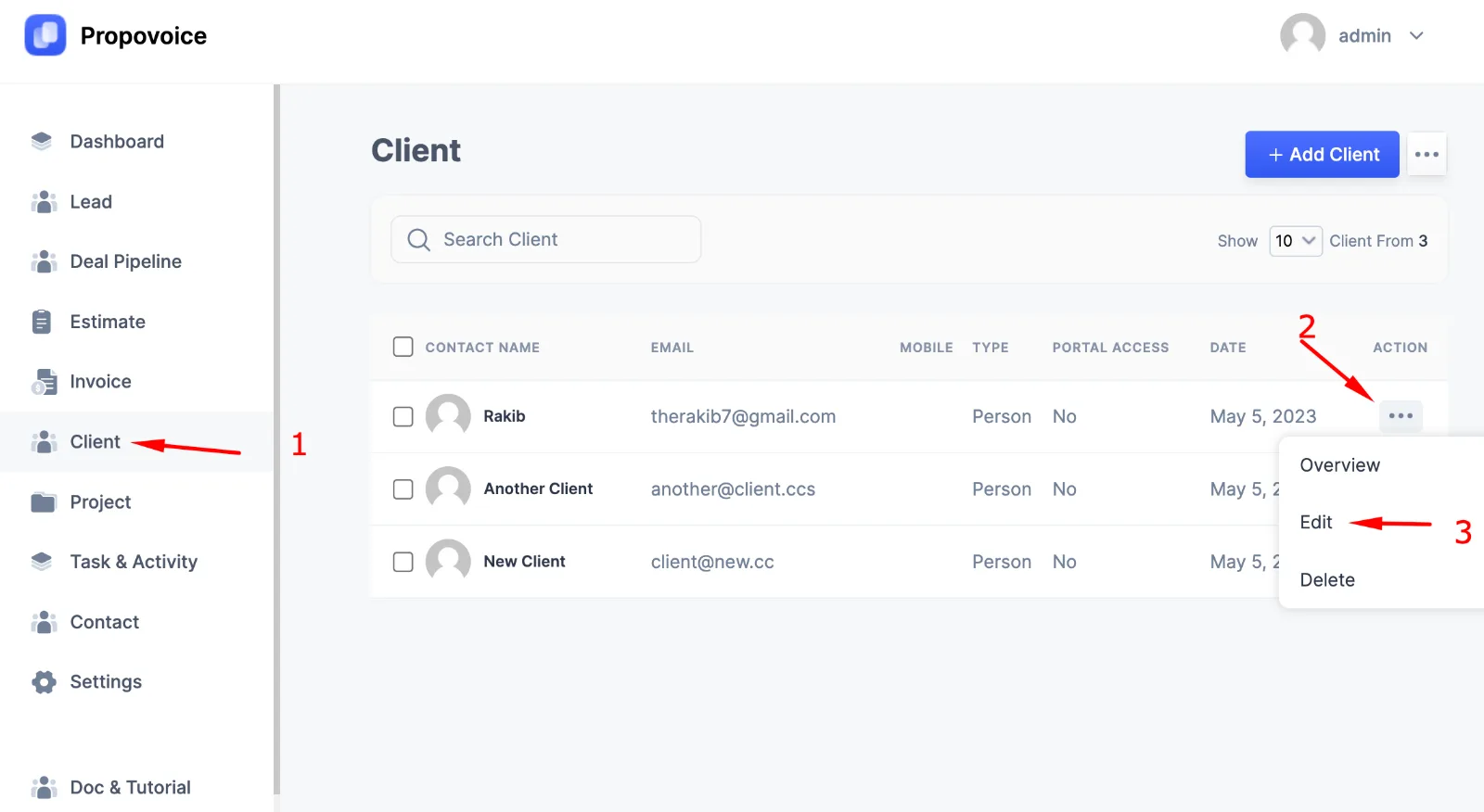
You will see a new option called “Client Portal Access” at the bottom of the Edit modal.
Toggle the option On. Lastly, Save settings.
Accessing the Client Portal
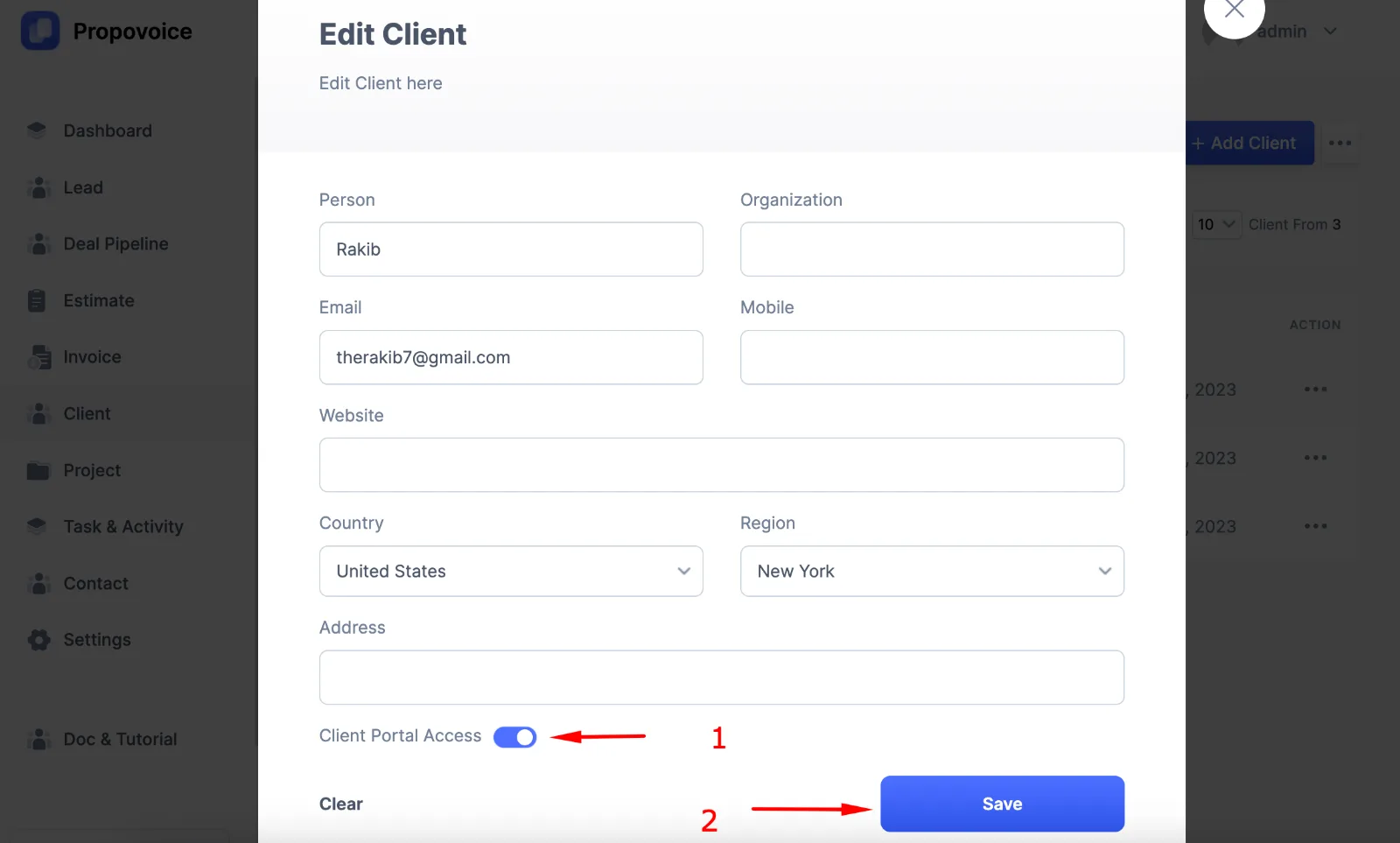
You can access the client portal by adding /workspace/ a the end of your site like app.enterprised.cloud/yoursite/workspace/
Your client will receive an email in their inbox with the credentials and access link of the Client Portal. The email will look like this.
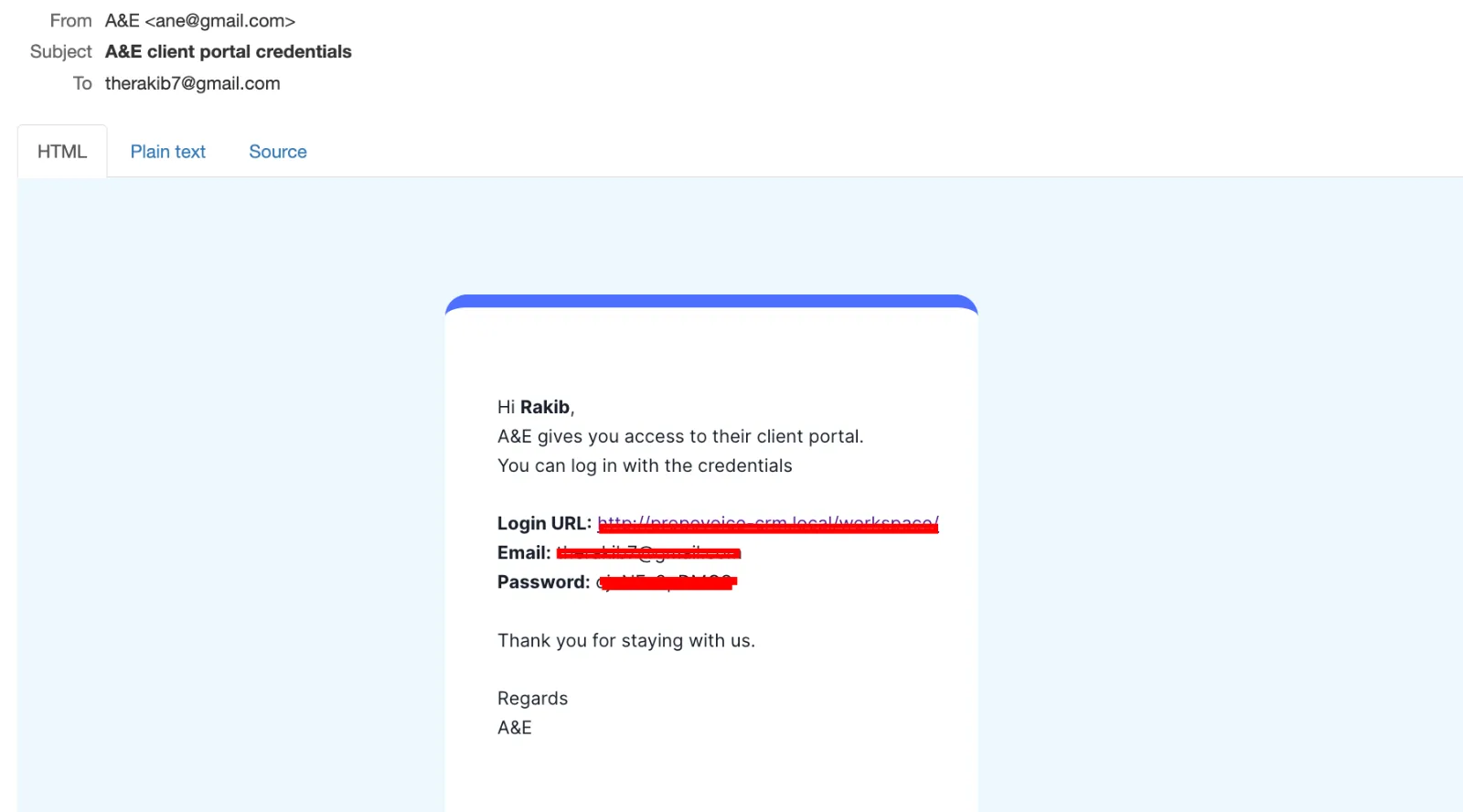
In this Stage, your client must click on the Login URL and insert the credentials to access the portal.
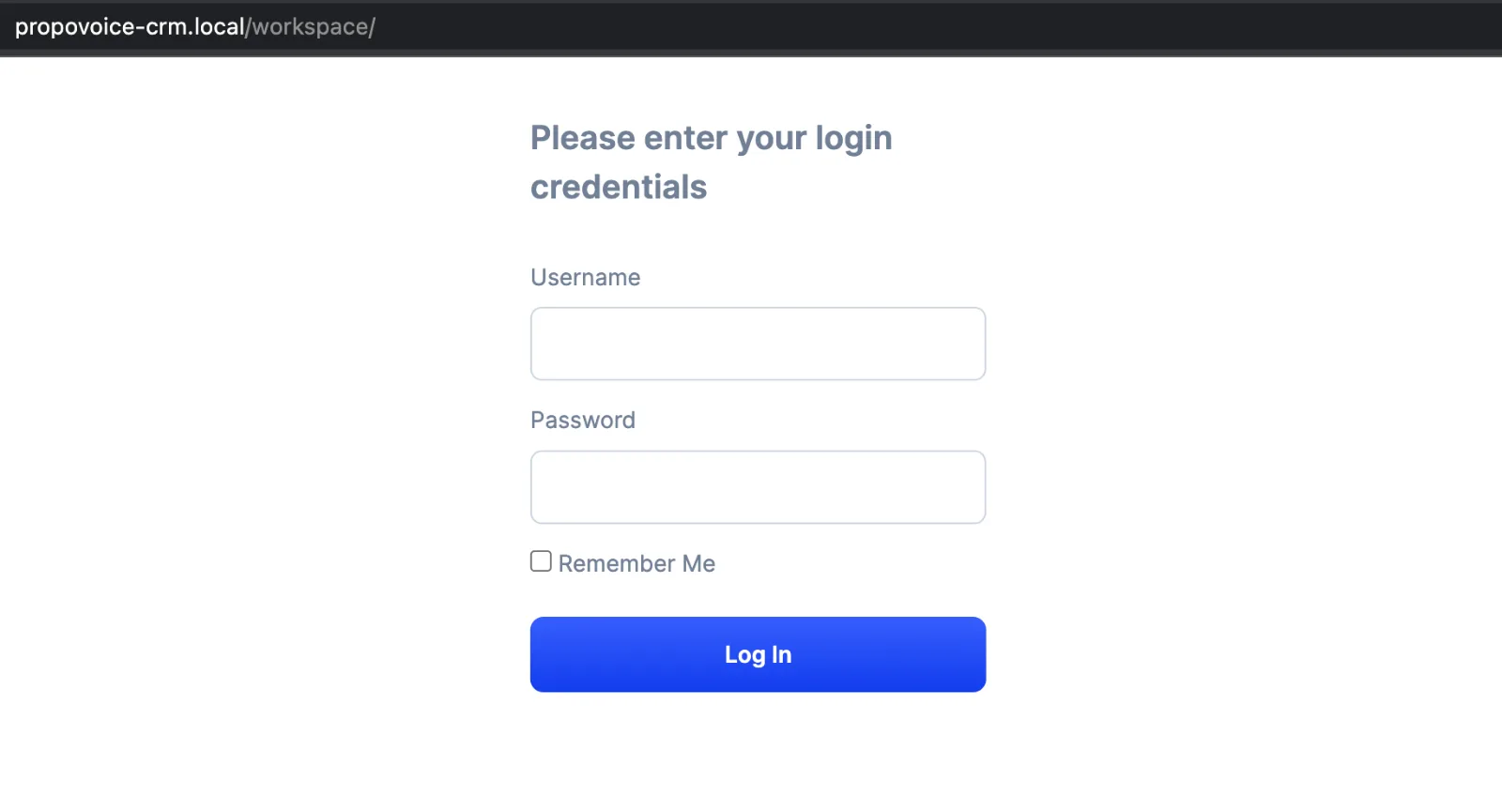
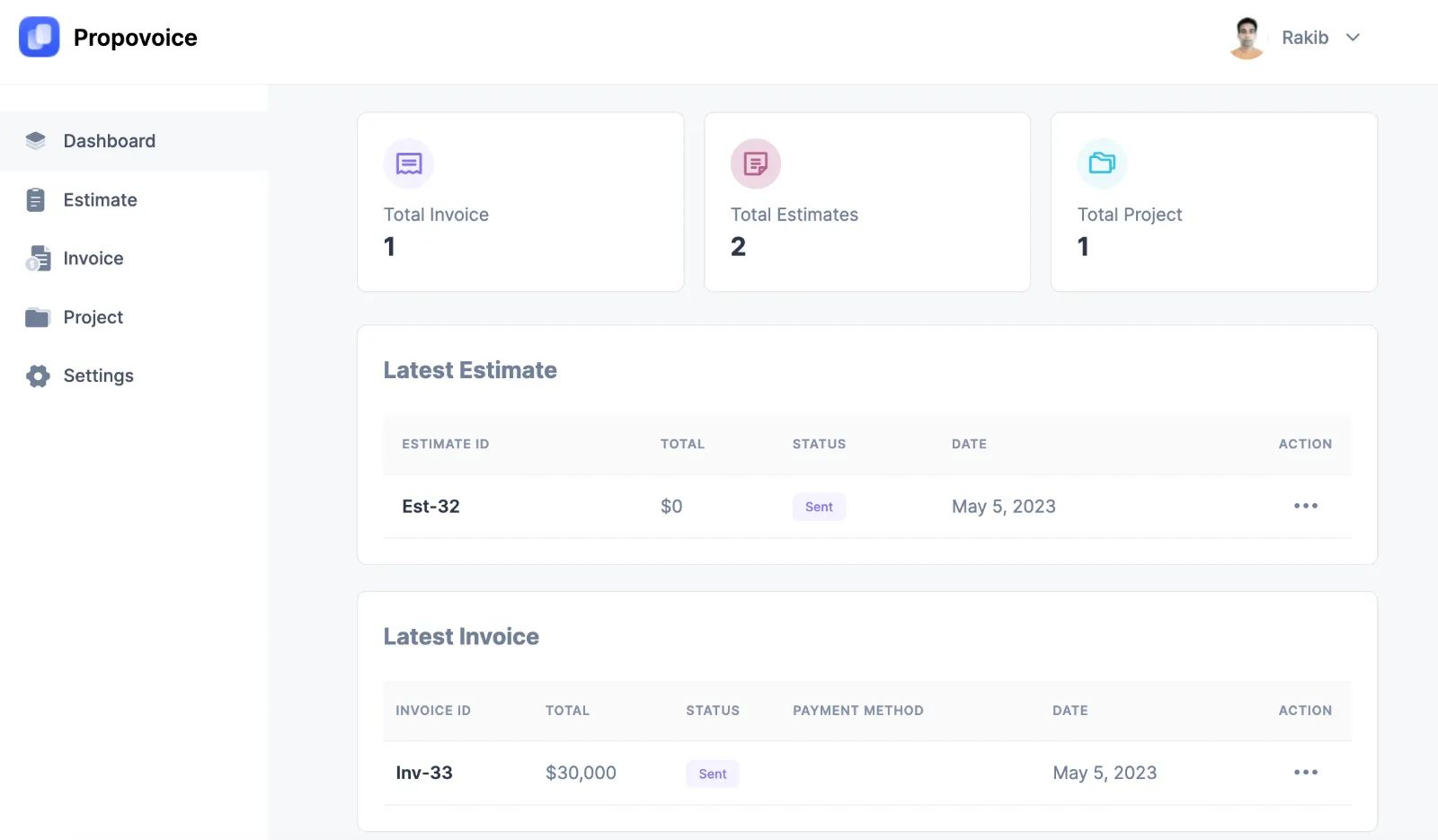
Client Portal
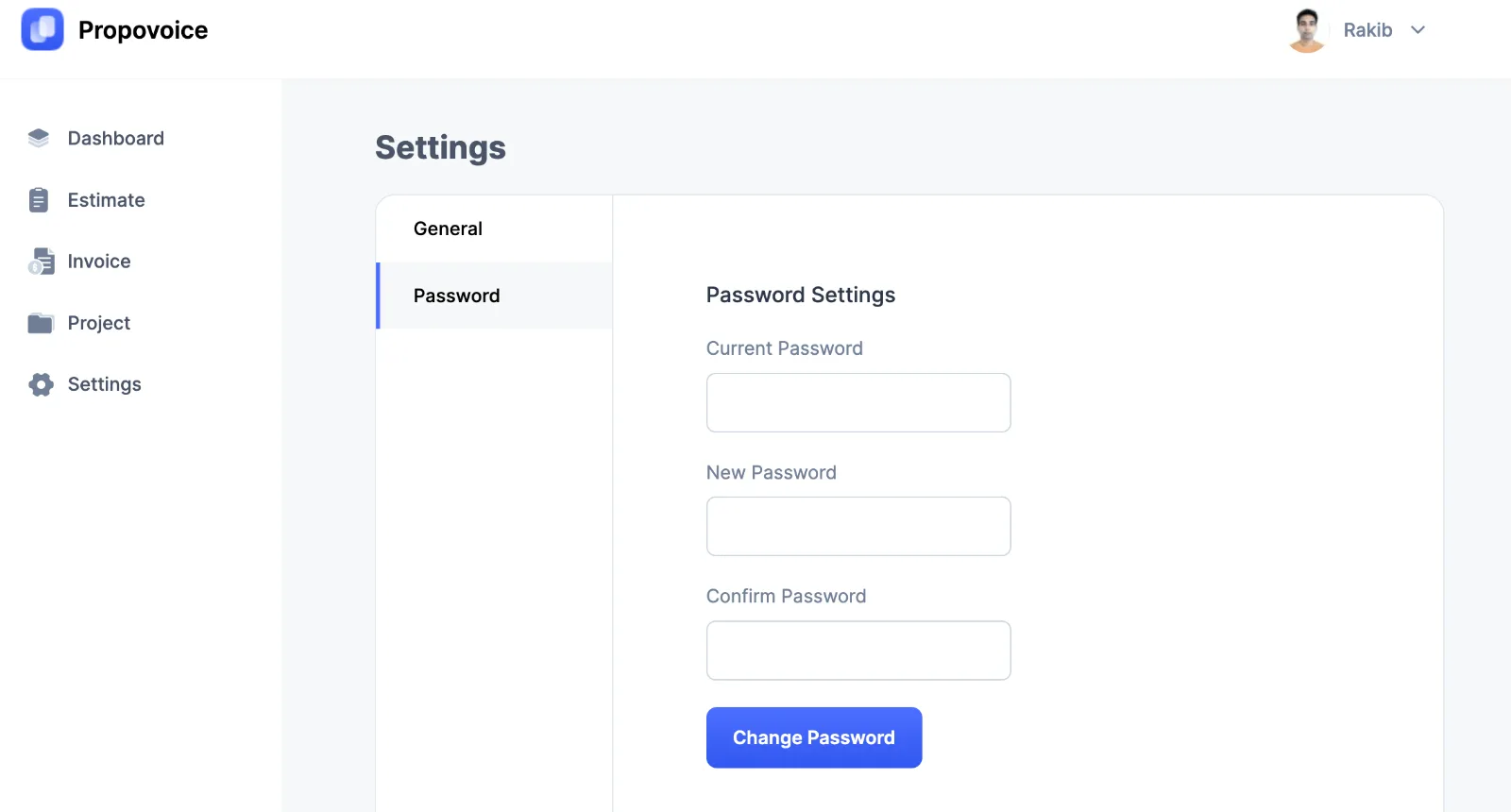
After logging in, your client can view their estimates, invoices, and projects. They can also change the password for better security.
Estimates
Your client can view all their estimates and their statuses.
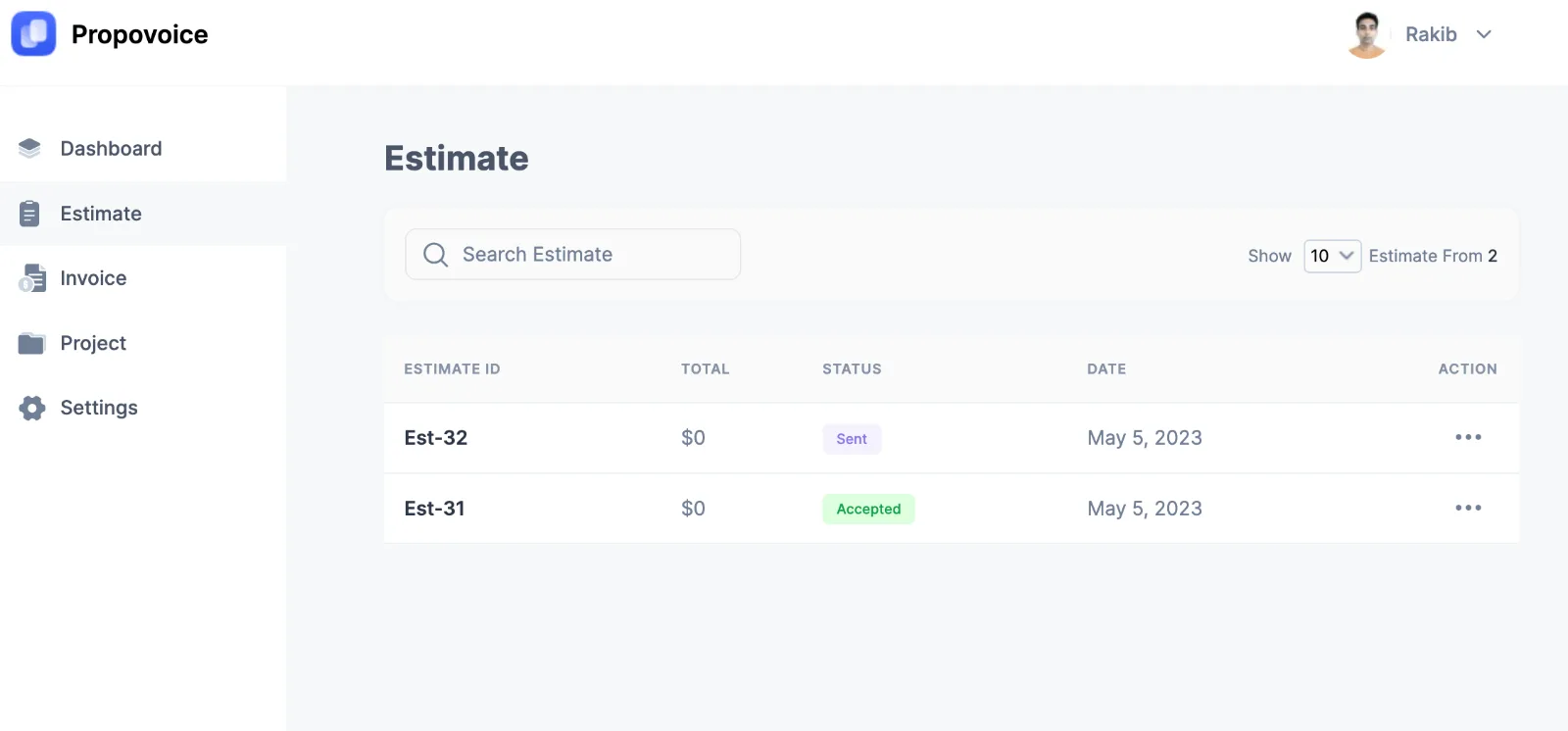
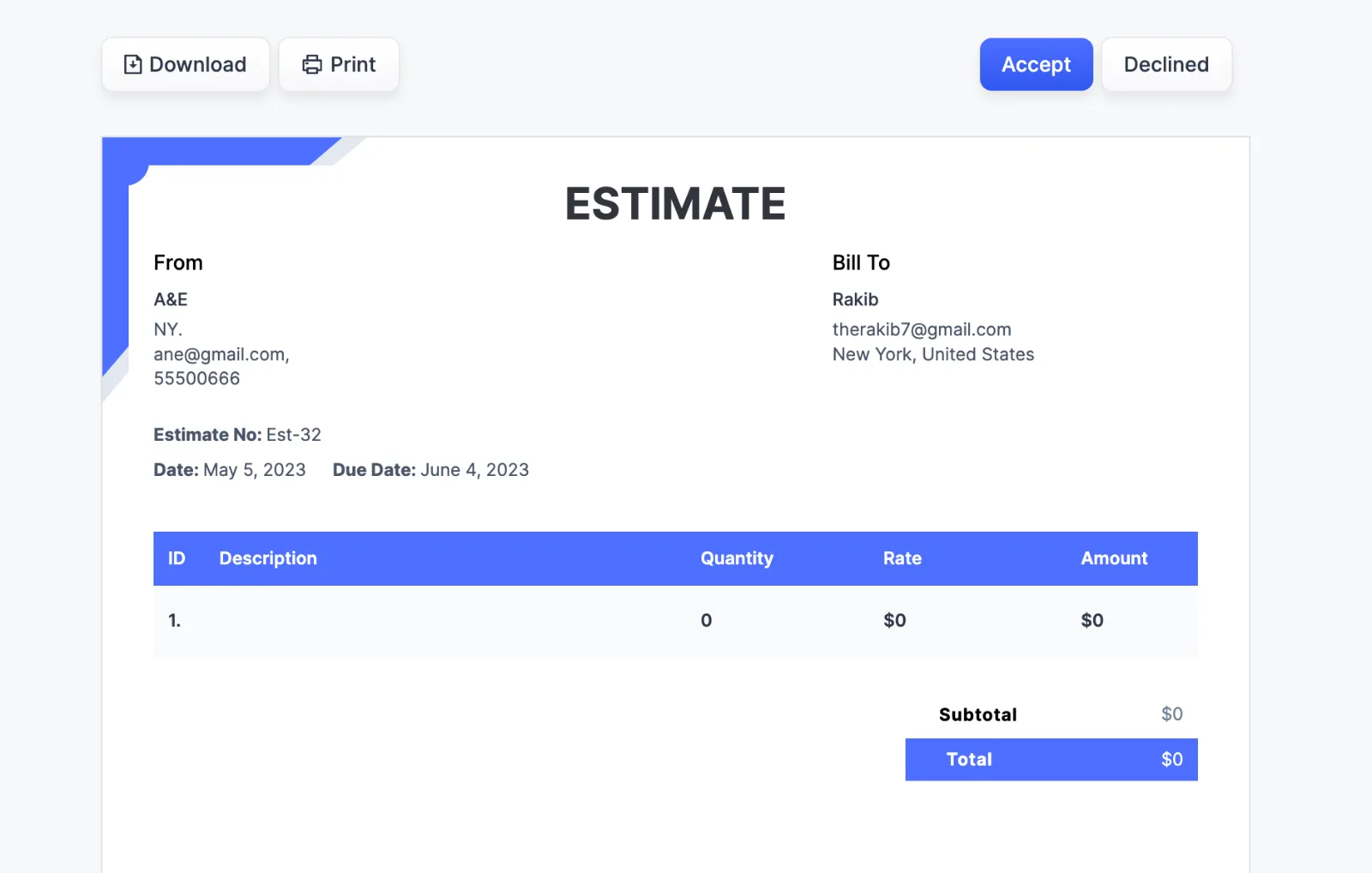
They can also Accept estimates directly from the portal. For this, they need to click on the Action option beside the Estimate and click Preview. It will open a new window with the Estimate they can Accept or Decline.
Invoice
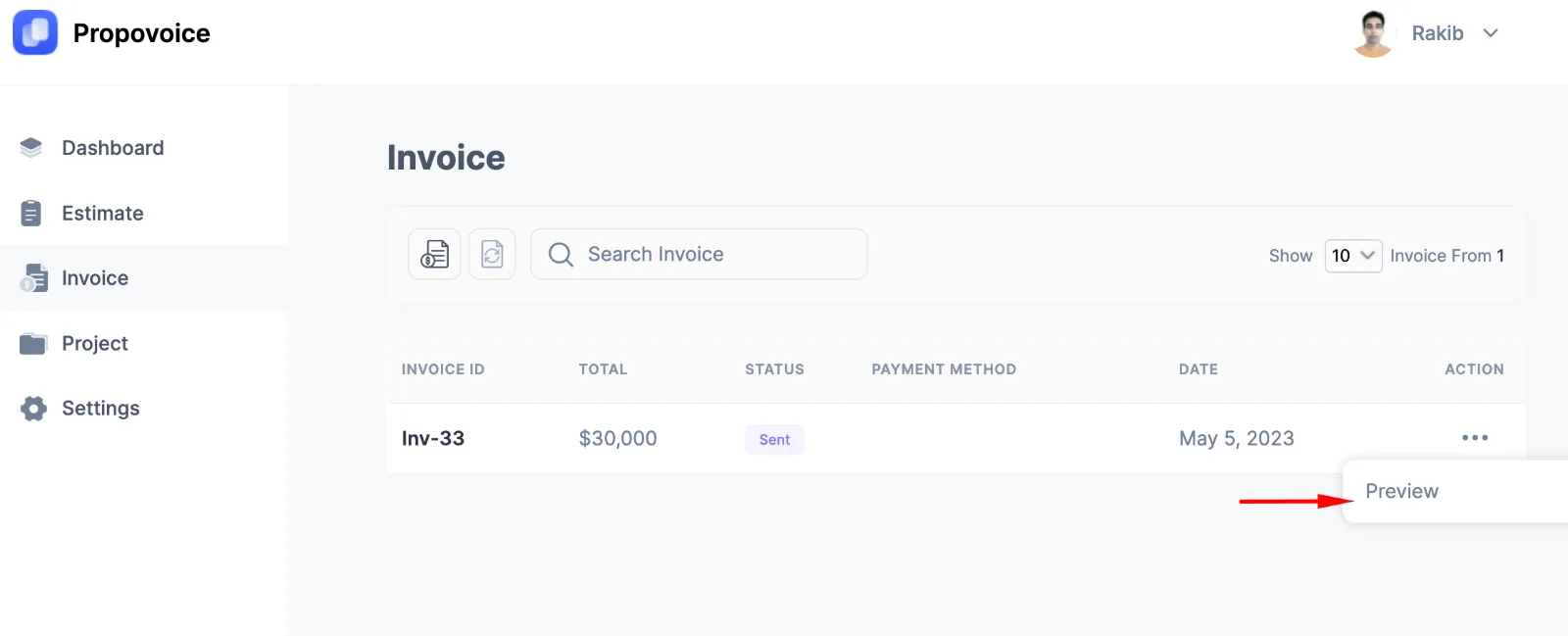
Your client can view all their invoices and their statuses in the Invoice menu. They can also preview, download and print the invoices when needed.
Project
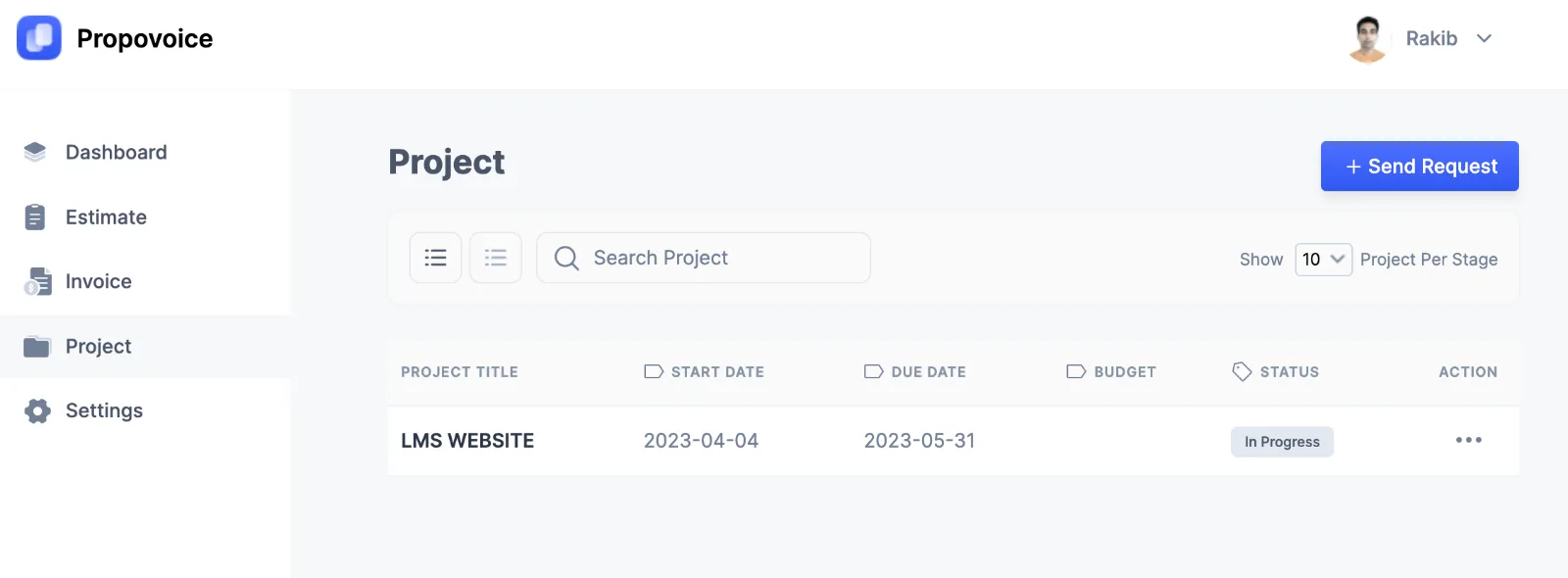
All the projects assigned to your Client will be visible in the Project menu.
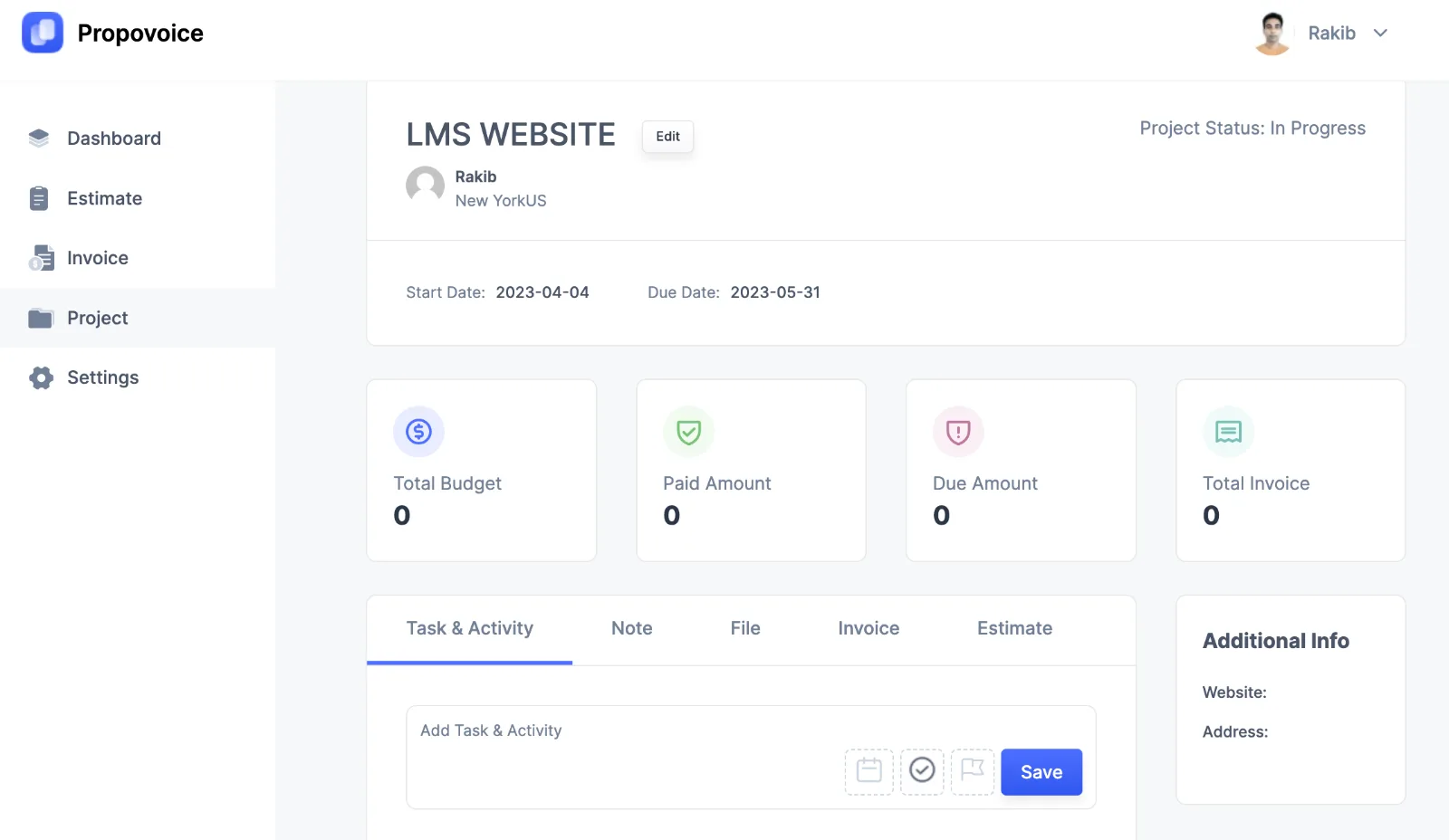
They can see the project overview and change certain settings as well. They can also add tasks & activities, notes, files, invoices and estimates.
Changing Password
Clients can change their password by visiting the Settings menu.