User Guide / Settings
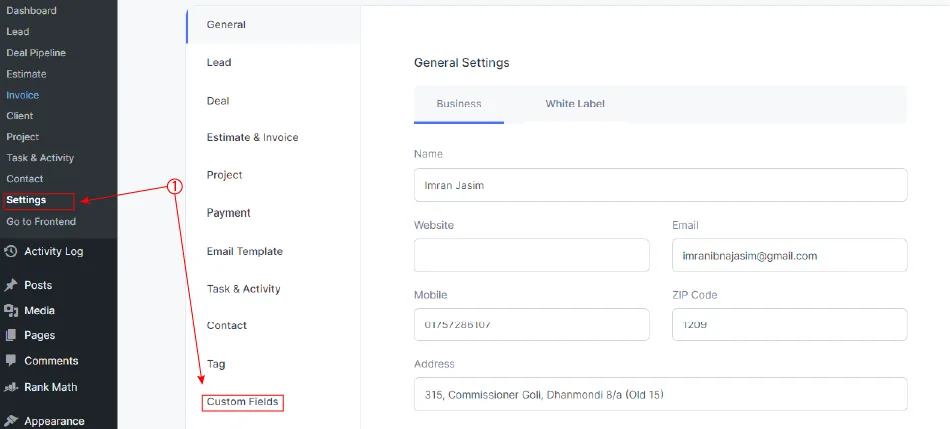
To add a new custom field, go to the Dashboard.
- Select Custom Fields from the Settings page.
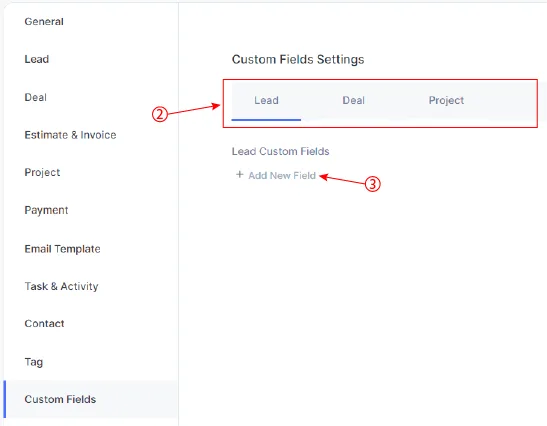
- Custom Fields from Custom Field Settings can be added on the Lead, Deal, and Project page.
- Select + Add New Field, to add a new custom field.
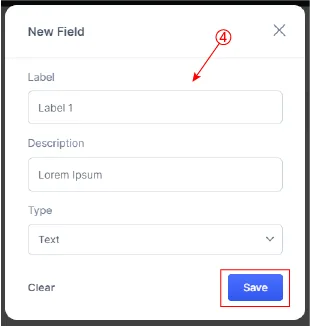
- A form will appear. Fill in all the required boxes and click on Save.
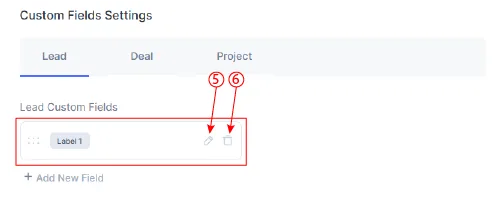
- As you can see a new custom field has appeared. You can easily edit the custom field just by clicking on the edit icon.
- To delete the custom field, just click on the delete icon and a command box will pop up on the browser. Click “Delete” to proceed.