Sales Pipeline Stages: How to Build a Pipeline That Actually Closes Deals

Sales Pipeline Stages: How to Build a Pipeline That Actually Closes Deals

Blog  /  Sales

Sales Pipeline Stages: How to Build a Pipeline That Actually Closes Deals

A sales pipeline turns a messy list of prospects into a clear picture of where every deal stands and what to do next. Here’s how to set up stages that fit a small business.

A sales pipeline is a visual way to track every potential deal from first contact to closed sale. Each column is a stage, and each card is a deal. At a glance, you can see how many opportunities you have, where they’re stuck and what’s likely to close this month.

Typical sales pipeline stages

Most pipelines follow a version of these stages:

  1. Lead: someone has shown interest, for example by filling out a contact form.
  2. Qualified: you’ve confirmed they have a real need, budget and timeline.
  3. Discovery or meeting: you’ve talked through their goals and requirements.
  4. Proposal or estimate sent: they have your pricing.
  5. Negotiation: you’re working through questions, scope or terms.
  6. Won or lost: the deal is closed either way.

An example pipeline for a service business

Service businesses often benefit from a slightly different pipeline that reflects how work is actually sold:

  • New inquiry → Discovery call booked → Estimate sent → Contract signed → Deposit paid → Won (moved to project)

Notice that the deal isn’t truly “won” until the agreement is signed and the deposit is paid. Building those steps into your pipeline keeps you from counting revenue too early.

How to customize your stages

Base stages on what the buyer does

Each stage should reflect a real step forward from the client, such as “booked a call” or “accepted the estimate,” not just activity on your side.

Keep it simple

Five to seven stages is plenty for most small businesses. Too many stages makes the pipeline harder to keep up to date.

Define what moves a deal forward

Write down the exit criteria for each stage. For example, a deal moves from “Qualified” to “Estimate sent” only when the estimate has actually been sent.

Separate leads from deals

Not every inquiry deserves a spot in the pipeline. Keep early leads in a lead list with labels like Hot, Warm and Cold, and convert them to deals once they’re qualified.

A drag-and-drop pipeline built around how you sell

Customize every stage, set win probability and turn won deals into projects in one click with Enterprised Cloud.

Metrics worth tracking

  • Number of open deals in each stage
  • Pipeline value: the total value of open deals, ideally weighted by win probability
  • Conversion rate between stages, to see where deals stall
  • Win rate: won deals divided by all closed deals
  • Average deal size and sales cycle length

You don’t need complex dashboards to start. Even reviewing your pipeline for 15 minutes each week, moving deals forward and scheduling the next step for each one, will improve your close rate.

Keep every deal moving

The most common pipeline problem isn’t the wrong stages. It’s deals with no next step. Make it a rule that every open deal has a scheduled task, whether that’s a follow-up call, a reminder on an estimate or a check-in after a proposal. That one habit keeps opportunities from quietly going cold.

Run your whole business from one cloud app.

CRM, estimates, invoicing, payments and eSignature for $29/month. Try it free for 30 days.

What Is a Client Portal, and Does Your Business Need One?

What Is a Client Portal, and Does Your Business Need One?

Blog  /  Client experience

What Is a Client Portal, and Does Your Business Need One?

A client portal gives each client a secure place to see estimates, sign documents, pay invoices and track projects. Here’s how it works and why more service businesses are using one.

If your client communication lives in email threads, attachments and text messages, you’ve probably heard “can you resend that invoice?” more times than you can count. A client portal fixes that by giving every client one secure place for everything related to working with you.

What is a client portal?

A client portal is a private, password-protected area where your clients log in to see and act on their information. Instead of hunting through email, they go to one place to review proposals, sign agreements, pay invoices, check project progress and send you requests.

What can clients do in a portal?

  • Review and accept estimates with one click.
  • Sign documents such as contracts and agreements.
  • View and pay invoices online, and see what they’ve paid and what they owe.
  • Follow projects and see status updates.
  • Share files and messages with you and your team.
  • Submit new project requests or order packaged services.

The benefits for your business

Fewer emails and less admin

When clients can find documents themselves, you spend less time resending files and answering status questions.

Faster approvals and payments

Accept buttons, eSignatures and online payments remove the steps that slow clients down, so estimates get approved and invoices get paid sooner.

A more professional experience

A branded portal makes even a small business feel established and organized. It’s a noticeable upgrade from a string of PDF attachments.

Better security

Contracts, invoices and project files are kept in a secure, private workspace instead of scattered across inboxes.

New work, delivered to your pipeline

When clients can request new projects from the portal, repeat business flows straight into your sales pipeline.

Who benefits most from a client portal?

Any business that works with clients over weeks or months gets value from a portal, especially agencies, consultants, freelancers, contractors, accountants, designers and other professional service firms. If you send more than a handful of estimates, contracts or invoices a month, a portal will likely pay for itself in saved time.

Give every client a branded portal

Enterprised Cloud’s client portal is included for unlimited clients: estimates, eSignatures, invoices, payments and project requests in one place.

Features to look for

  1. Easy access. One-click invitations and automatic login emails for clients.
  2. Estimates and approvals. Clients can accept proposals directly.
  3. Online payments. ACH and card payments from the invoice.
  4. eSignatures. Legally binding signing with an audit trail.
  5. Messaging and files. Conversations and documents kept with the project.
  6. Project requests. New work submitted by clients goes into your pipeline.
  7. Connected to your CRM. The portal should share data with your deals, estimates and invoices, not live in a separate tool.

The bottom line

A client portal turns a scattered email trail into one organized, professional experience. It saves you time, speeds up approvals and payments and makes clients happier. If it comes built into your CRM, it’s one of the easiest upgrades a service business can make.

Run your whole business from one cloud app.

CRM, estimates, invoicing, payments and eSignature for $29/month. Try it free for 30 days.

How to Get Clients to Pay on Time: 10 Proven Ways to Stop Chasing Invoices

How to Get Clients to Pay on Time: 10 Proven Ways to Stop Chasing Invoices

Blog  /  Get paid

How to Get Clients to Pay on Time: 10 Proven Ways to Stop Chasing Invoices

Late payments hurt cash flow and waste hours of follow-up. Most of the fix happens before the invoice is even sent. Here are ten practical ways to get paid faster.

If you run a service business, you’ve probably spent an uncomfortable amount of time chasing money you’ve already earned. The good news: most late payments aren’t malicious. They’re caused by unclear terms, inconvenient payment methods and invoices that get lost in a busy inbox. Fix those, and payments speed up.

1. Agree on payment terms before you start

Put your payment terms in the estimate or contract, and get it signed. When the client has already agreed to “50% deposit, balance due within 14 days of completion,” the invoice is a formality, not a negotiation.

2. Take a deposit

A deposit up front reduces your risk and signals commitment from the client. For larger projects, consider milestone payments tied to clear deliverables.

3. Invoice immediately

The longer you wait to invoice, the longer you wait to get paid. Send invoices the day work is delivered, or set up recurring invoices for ongoing work.

4. Make invoices clear and professional

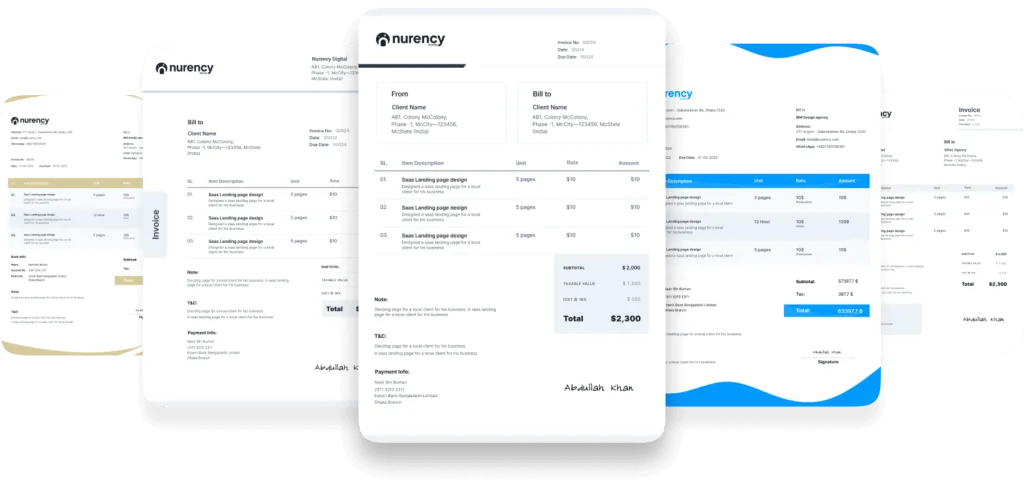
Include an invoice number, issue and due dates, itemized work, taxes, the total and how to pay. A clear, branded invoice looks legitimate and is easier for the client’s accounts team to approve.

5. Use specific due dates

“Due on March 15” is clearer than “Net 30.” Specific dates reduce confusion and make reminders easier to understand.

6. Let clients pay online

This is the single biggest improvement for most businesses. A Pay Now button that accepts ACH bank transfer and cards removes the friction of writing a check or logging into online banking.

7. Automate reminders

Set reminders to go out a few days before the due date, on the due date and after it. Automated reminders are consistent, polite and save you from writing awkward emails.

Set your reminders once and get paid on time

Enterprised Cloud sends branded invoices with ACH, card, PayPal and Stripe payments, plus automatic reminders and recurring billing.

8. Bill retainers automatically

For ongoing work, recurring invoices and automatic subscriptions charge clients on a schedule, so you don’t have to remember to bill each month and they don’t have to remember to pay.

9. Give clients one place to see what they owe

A client portal shows clients their invoices, what they’ve paid and what’s outstanding. When everything is in one place, there’s no “I never got that invoice.”

10. Have a clear late-payment process

Decide in advance what happens when an invoice is overdue: a reminder schedule, a personal follow-up, a late fee if your contract allows it, and pausing work for long-overdue accounts. Being consistent is fairer to clients and easier on you.

Putting it together

Getting paid on time is mostly about removing friction and uncertainty: agree on terms up front, invoice quickly, make paying easy and let automation handle the reminders. Do that, and you’ll spend far less time chasing payments and more time doing the work you’re paid for.

Run your whole business from one cloud app.

CRM, estimates, invoicing, payments and eSignature for $29/month. Try it free for 30 days.

Are Electronic Signatures Legally Binding? ESIGN and UETA Explained

Are Electronic Signatures Legally Binding? ESIGN and UETA Explained

Blog  /  eSignature

Are Electronic Signatures Legally Binding? ESIGN and UETA Explained

In the United States, electronic signatures are generally just as valid as handwritten ones. Here’s what the ESIGN Act and UETA say, what makes an e-signature enforceable and which documents are exceptions.

This article is general information, not legal advice. Laws vary by state and situation, so talk to an attorney about your specific documents.

The short answer

Yes. In the United States, an electronic signature generally has the same legal effect as a handwritten signature. Two laws make this so: the federal ESIGN Act and the state-level Uniform Electronic Transactions Act (UETA). Both establish that a signature or contract can’t be denied legal effect simply because it’s electronic.

The ESIGN Act

The Electronic Signatures in Global and National Commerce Act (ESIGN) is a federal law enacted in 2000. It applies to transactions in interstate and foreign commerce and gives electronic signatures and records the same legal standing as paper. It also includes consumer protections: when a law requires information to be provided to a consumer in writing, the consumer must consent to receive it electronically.

UETA

UETA is a model law that states adopt individually. The vast majority of states, along with Washington, D.C., have adopted a version of it. A small number of states, including New York and Illinois, rely on their own similar electronic signature laws instead. Together, ESIGN and these state laws give electronic signatures broad legal recognition across the country.

What makes an electronic signature enforceable?

A signature being electronic isn’t enough on its own. Courts generally look for these elements:

  1. Intent to sign. The signer meant to sign the document, for example by typing, drawing or clicking to adopt a signature.
  2. Consent to do business electronically. The parties agreed to use electronic records and signatures. Consent can often be shown by the circumstances, but consumer transactions may require specific disclosures and affirmative consent.
  3. Attribution. The signature can be tied to the person who signed, for example through email verification and a record of the signing session.
  4. Association with the record. The signature is attached to, or logically associated with, the document being signed.
  5. Record retention. The signed document is stored securely, in a way that preserves its integrity, and the signer can keep a copy.

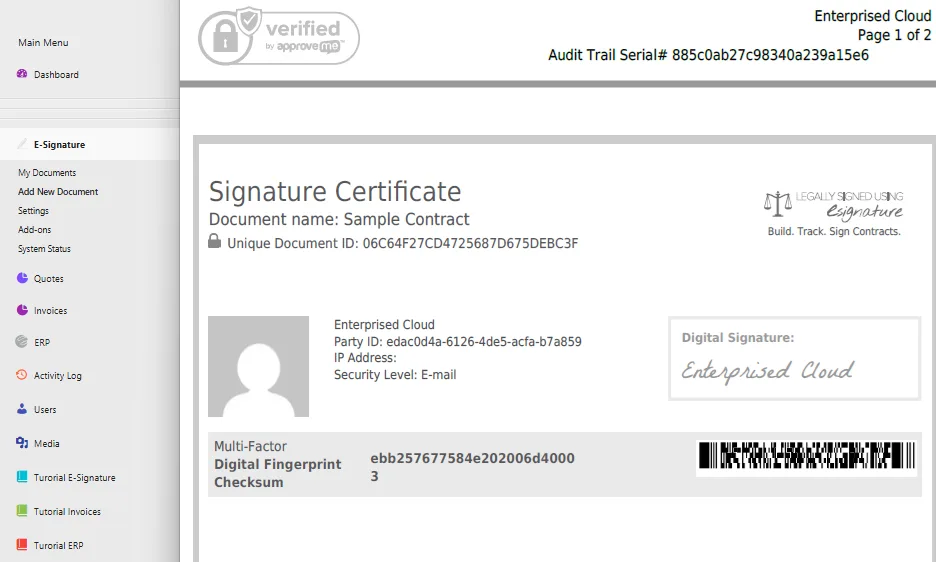
That’s why a good eSignature tool keeps a detailed audit trail (who signed, when, from where, and each step in the process) and issues a signature certificate with the final document.

Documents that usually can’t be signed electronically

ESIGN and UETA exclude certain documents. Exact rules vary by state, but common exceptions include:

  • Wills, codicils and testamentary trusts (though some states now allow electronic wills)
  • Adoption, divorce and other family law documents
  • Court orders, notices and official court documents
  • Notices of utility shut-off, foreclosure, eviction or default under a mortgage or lease
  • Notices canceling health or life insurance
  • Product recall and safety notices
  • Documents that must accompany hazardous materials

Everyday business documents such as sales contracts, service agreements, NDAs, estimates, proposals, waivers, releases and most HR forms are typically fine to sign electronically.

What about outside the US?

Many countries recognize electronic signatures. In the European Union, the eIDAS regulation sets the framework, and data protection rules like GDPR govern how personal data in signed documents is handled. If you work with international clients, check the rules in their country.

Legally binding eSignatures, included

Enterprised Cloud eSignature is UETA, ESIGN and GDPR compliant, with a full audit trail and signature certificate on every document.

Best practices for using e-signatures

  • Use a tool that records an audit trail and issues a signature certificate.
  • Verify the signer’s email or identity, especially for high-value agreements.
  • Make sure every party receives a copy of the fully executed document.
  • Store signed documents securely and keep them for your required retention period.
  • When in doubt about a specific document type, ask an attorney.

Run your whole business from one cloud app.

CRM, estimates, invoicing, payments and eSignature for $29/month. Try it free for 30 days.

How to Write a Winning Estimate: Structure, Examples and Tips

How to Write a Winning Estimate: Structure, Examples and Tips

Blog  /  How-to

How to Write a Winning Estimate: Structure, Examples and Tips

A clear, professional estimate does more than list prices. It builds trust, answers questions before they’re asked and makes it easy for the client to say yes.

Whether you call it an estimate, a quote or a proposal, this document is often the moment a prospect decides whether to hire you. A vague or messy estimate creates doubt. A clear one shows you understand the job and makes the decision easy.

Estimate, quote or proposal: what’s the difference?

  • Estimate: your best calculation of what the work will cost, based on what you know today. It may change if the scope changes.
  • Quote: a fixed price for a clearly defined scope, usually valid for a set period.
  • Proposal: a broader sales document that explains your approach, timeline and value, and usually includes pricing.

Many businesses blend these. The structure below works for all three.

What to include in every estimate

  1. Your branding and contact details. Logo, business name, email and phone.
  2. Client details. Name, company and contact information.
  3. Estimate number and dates. An issue date and a “valid until” date.
  4. A short summary of the project. One or two sentences that show you understand the client’s goal.
  5. Itemized line items. Each with a description, quantity, rate and amount.
  6. Taxes, discounts and fees. Shown clearly so there are no surprises.
  7. Total. Easy to find at a glance.
  8. Terms. Payment schedule (for example, a deposit up front), what’s included and excluded, and how changes are handled.
  9. A clear next step. An Accept button or signature line.

A simple structure you can reuse

Here’s a layout that works for most service businesses:

  • Title: “Website redesign for Acme Co.” (specific beats generic)
  • Overview: “Acme needs a faster, mobile-friendly website that converts more visitors into leads.”
  • Line items: Discovery and planning; Design; Development; Launch and training
  • Timeline: key milestones and an estimated completion date
  • Terms: “50% deposit due on acceptance, 50% on completion. Estimate valid for 30 days.”
  • Accept: a one-click accept button or eSignature

Tips that help estimates get approved

Break the work into clear line items

A single lump sum invites questions. Itemizing shows where the money goes and makes it easier for the client to see the value.

Write descriptions in the client’s language

Describe outcomes, not just tasks. “Mobile-friendly design so customers can book from their phones” means more to a client than “responsive CSS.”

Set an expiration date

A “valid until” date protects you from price changes and gently encourages a decision.

Make accepting effortless

Every extra step (printing, signing, scanning, emailing back) costs you time and sometimes the deal. Online estimates with an Accept button or built-in eSignature remove that friction.

Send it fast and follow up automatically

Speed signals professionalism. Send the estimate while the conversation is fresh, then set reminders so a polite follow-up goes out if the client hasn’t responded.

Create branded estimates in three steps

Choose a template, add your items and send. Clients accept in one click, and you convert it to an invoice instantly.

After the client says yes

The work isn’t done when the estimate is accepted. Turn it into a project, schedule the first task and, if you take deposits, send the deposit invoice right away. When your estimates, projects and invoices live in the same system, this takes seconds instead of an afternoon.

Run your whole business from one cloud app.

CRM, estimates, invoicing, payments and eSignature for $29/month. Try it free for 30 days.

Looking for a QuickBooks Alternative for Invoicing? When an All-in-One CRM Makes More Sense

Looking for a QuickBooks Alternative for Invoicing? When an All-in-One CRM Makes More Sense

Blog  /  Comparison

Looking for a QuickBooks Alternative for Invoicing? When an All-in-One CRM Makes More Sense

QuickBooks is excellent accounting software. But if what you really need is to quote, invoice and get paid, an all-in-one CRM may fit your business better, and cost less.

Many small businesses sign up for accounting software simply because they need to send invoices. Months later they realize they’re paying for bookkeeping features they rarely use, while still juggling a separate CRM, proposal tool and eSignature app to win the work in the first place.

This article explains the difference between accounting software and an all-in-one CRM with invoicing, so you can choose the right tool, or the right combination of tools, for how your business actually runs.

Accounting software and invoicing software are different jobs

Accounting software such as QuickBooks Online is built to keep your books: bank reconciliation, chart of accounts, expense tracking, financial statements and tax preparation. Invoicing is one feature within a much larger financial system.

An all-in-one CRM with invoicing is built around the customer and the sale. It tracks leads and deals, creates estimates, collects signatures, turns accepted work into invoices and collects payment. It’s designed for the front half of your business: winning work and getting paid for it.

Neither is “better.” They solve different problems. The question is which problem is bigger for you right now.

Signs a CRM with invoicing is the better fit

  • You mainly need to quote, invoice and collect payment. Your accountant or bookkeeper handles the books separately, or your bookkeeping needs are simple.
  • You retype the same information. Client details go into a CRM, then into a proposal, then into an invoice.
  • Estimates and contracts slow you down. You send PDFs, wait for a signed copy by email and then build the invoice manually.
  • You pay for several tools. A CRM, a proposal app, an eSignature service and invoicing software add up quickly.
  • Clients ask where things stand. You’d benefit from a client portal where they can see estimates, sign and pay.

Signs you still need accounting software

Be honest about what you need. You’ll still want dedicated accounting software, or an accountant who uses it, if you need:

  • Bank feeds, reconciliation and a full general ledger
  • Payroll processing
  • Financial statements such as profit and loss and balance sheets
  • Tax filing support and accountant collaboration
  • Inventory accounting or complex multi-entity books

Plenty of businesses use both: a CRM to run sales, estimates, signatures, invoicing and payments, and accounting software (or their accountant) for the books. The key is not paying for overlapping features you don’t use.

What to look for in a CRM that invoices

  1. Estimates that convert to invoices in one click once the client accepts.
  2. Online payments by ACH and card, with options like Stripe and PayPal.
  3. Recurring invoices for retainers and subscriptions.
  4. Automatic reminders before and after the due date.
  5. Multi-currency and flexible tax, including per-item, state and country taxes or VAT.
  6. Branded templates and PDF download for your records.
  7. Data export, so your bookkeeper can bring numbers into your accounting system.
Quote, sign, invoice and get paid in one app

Enterprised Cloud combines CRM, estimates, eSignature, invoicing and online payments for $29/month with unlimited users.

A simple way to decide

List the tasks you do every week to win and bill a client. If most of them are sales, proposals, contracts, invoices and payment follow-ups, start with an all-in-one CRM that handles those well. If most of them are bookkeeping, reconciliation and payroll, accounting software should be your core tool.

And if it’s both, choose tools that don’t overlap, so each one does its job and you only pay once for each capability.

QuickBooks is a trademark of Intuit Inc. This article is a general comparison of software categories and isn’t affiliated with or endorsed by Intuit.

Run your whole business from one cloud app.

CRM, estimates, invoicing, payments and eSignature for $29/month. Try it free for 30 days.